Build server automated tests fail SQL authentication

If unit tests are testing against the database using Integrated Security then when these automated tests are put onto the build machine authentication may fail.
SOLUTION. Create a SQL login for a machine which is possible.
CREATE LOGIN [MyDomain\MyComputer$] FROM WINDOWS;
http://social.msdn.microsoft.com/Forums/en/sqlsecurity/thread/315b5780-c131-4867-88b9-ebac82e68d77

All TableAdapters managed by a TableAdapterManager must use the same connection string

All TableAdapters managed by a TableAdapterManager must use the same connection string

http://social.msdn.microsoft.com/Forums/en/adodotnetdataset/thread/f172a9f6-e59a-49b5-818e-bd86f5a3bfa2

Can happen because one connection string has Persist Security Info=True and one does not
Make sure each connection string is the same.

Cannot bind to the property or column .. on the datasource.

VB.Net Window Forms databinding

Cannot bind to the property or column .. on the datasource.
Parameter name: dataMember

  1. Check to see if you have used the same binding source for two or more combo boxes.
  2. or alternatively because dataMember is not strongly typed, possible that the name of a field has changed in the data set, but not in the form

Setup and Deployment Project

Project 1 requires a setup project
Add New Project > Other Project Types > Setup and Deployment > Visual Studio Installer > Setup Project

See File System Editor > Application Folder > Properties for Default Location which will start as [ProgramFilesFolder][Manufacturer]\[ProductName]

The Manufacturer is set on Setup project properties. Probably change this from Microsoft. Many other properties here also.

Next problem was :

“error reading from file … verify that the file exists and that you can access it”
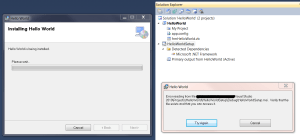
Following resolved this:

http://devsac.blogspot.com/2009/02/error-reading-from-file-msi-verify-that.html

This says add permission to System for the folder with the msi file in it.

Add an assembly to the GAC

> File System on Target Machine > Right-click Add Special Folder > Global Assembly Cache Folder > Browse and add assembly here. In this case EntityFramework.dll version 4.1.0.0

This worked and program then ran on target machine. However it did not appear in the C:\Windows\Assembly as I may have expected. I guess the assembly is in the file system though. To Register it I am going to try > Select assembly > Properties > Register > vsdraCOM

Distrbuting Prerequistes

> Select Setup Project > Right-click Properties > Prerequisites
‘Assembly.Namespace(s).ClassName.Private Sub MethodName’ is not accessible in this context because it is ‘Private’

 If when coding a new test you get the following error:

‘Assembly.Namespace(s).ClassName.Private Sub MethodName’ is not accessible in this context because it is ‘Private’

  • Go to Method Name for which you wish to create test
  • Create a private accessor
  • Go to test method you are creating
  • Change the type of the object you are creating to ..ClassName_Accessor
  • You should now be OK. May need to change some to ..ClassName_Accessory and not others

Good when you know how

Parent and Child new row on windows forms details

Problem is that
Me.ParentBindingSource.AddNew
Me.ChildBindingSource.AddNew

then when saving:
Me.ParentBindingSource.EndEdit
will destroy child row.

My workaround is:
Store a variable stating is NewRow and/or child row data IsMissing
Then on SaveData use:
If NewRow OrElse IsChildRowMissing Then
  StoreData
End If
Me.ParentBindingSource.EndEdit
If NewRow OrElse IsChildRowMissing Then
  Using taP as New dsTableAdapters.ParentTableAdapter
     taP.Update(ds)
  End Using
  DisplayStoredData – which includes re-adding child row
End If
Continue with normal save

This link describes problem but is not much help to solution:
http://www.vbdotnetforums.com/database-general-discussion/13058-calling-endedit-causes-datarelations-fail.html

VS TFS Team Build Process

Install not too bad. Recommendation was to put on a standalone machine or server that would not use too many resources. I picked my spare XP SP3 machine and installed Visual Studio Team Foundation Server 2010. For drop folder I used a server with short directory name \\server-name\Build
Then using Team Explorer in VS from my developer machine I created a Build definition.

First bug was:
user ‘nt authority\network service’ needs write permissions to the path
Solution was go to highest directory add security for Network Service Full Control, but only for that folder
Then for folder Build I also added security for Network Service. This all took sometime.

Now running however next problem was
assemblies not on machine.
Installed on build machine Report Viewer then later VBPowerPacks. Getting better

Next problem was
dll’s below root of build
Solution was to create a “solution folder” called CommonAssemblies and added the required dll’s into this folder. Then Checked these in to Source Code control and pointed projects using these to this folder.

Next problem was
When a program used one assmbly which used another dll build did not work properly. 
Solution was to add dll to last project to build.

———-

Worked great for a day then Build controllers stopped working:
“there was no endpoint listening at http:// … /v3.0/… that would accept the message this is often caused by an incorrect address or soap action”
http://www.ewaldhofman.nl/post/2010/07/14/Build-server-stops-suddenly-and-frequently.aspx
“In my case it turned out that I had a duplicate entry in the DHCP server for the Build Server. Removing the duplicate entry solved the issue.”
DHCP server on PDC server. On inspection I also had duplicate entry in DHCP server. We then a reserved IP address for my XP Build Server machine. This may have helped.
However also in TFS Administration Console changed the “Build Service properties” “Local Build Service Endpoint (incoming):” to use http:// < ip address of machine >

Data-Driven Unit Tests

See Book Wrox Professional Application Lifecycle Management p121
VS > Test > Windows > Test View > Select Test > Properties
Data Connection String .. Elipse or type “Data Source=ServerName;Initial Catalog=DatabaseName;Integrated Security=True”
Data Table Name: Name of Schema.Table or View with data list

Alternatively in code:
    Public Property TestContext() As TestContext

    <TestMethod(), DataSource(“System.Data.SqlClient”, “Data Source=ServerName;Initial Catalog=DatabaseName;Integrated Security=True”, “SchemaName.TableOrViewName”, DataAccessMethod.Sequential)> _
    Public Sub SQLViewTest()
TestContext.DataRow(ColumnName or Index).ToString

Visual Studio not auto-building on run

Right-click on configuration manager and check to see if build is checked for project in question
Also in Tools > Options > Projects and Solutions > On run when projects are out of date > Always Build

Thanks to
http://superuser.com/questions/135627/visual-studio-not-auto-building-when-i-press-the-debug-button

Addendum 17-8-2011
If above not succeeded then keep these options, but also do a Clean (of solution -works or of project -not tested)

..Row cannot be cast to ..Row when appear to be same. InvalidCastException

rowTS = CType(TimeSheetBindingSource.Current, DataRowView.Row, dsMyCo.TimeSheetRow

A first chance exception of type ‘System.InvalidCastException’ occurred in MyCompany.exe

[A]TimeSheetRow cannot be cast to [B]TimeSheetRow. Type A originates from ‘ProjectName, Version=1.0.0.0, Culture=neutral, PublicKeyToken=null’ in the context ‘Default’ at location ‘Project…\bin\Debug\ProjectName.exe’. Type B originates from ‘ProjectName, Version=1.0.0.0, Culture=neutral, PublicKeyToken=null’ in the context ‘Default’ at location Project…\bin\Debug\ProjectName.exe’.

Check you are converting from Rows in the same dataset. So if a table appears in more than one dataset check you are using the correct one.