Move SQL Server 2008 R2 back to SQL Server 2005 – Generate Scripts then Import Data

Start with SQL 2005 server > Create database >
SQL 2008 server > Generate Scripts > Choose Advanced options > Script to SQL 2005 > Options of Script Schema and Data, Schema, Data > Generate
Go to SQL 2005 database > Import Data > Import from 2008 database

A useful function to consider is

SQl Server 2005 SP3 will go upto  611 where as you are retiring a SQL 2008 db which is version 655.
Do your self a favour before migrating DBs’ between different versions do a [select * from sysdatabases] and check the column VERSION. Most of us believe CMPTLEVEL if 90 will go good for version 9.0 but its the database internal version that matters.
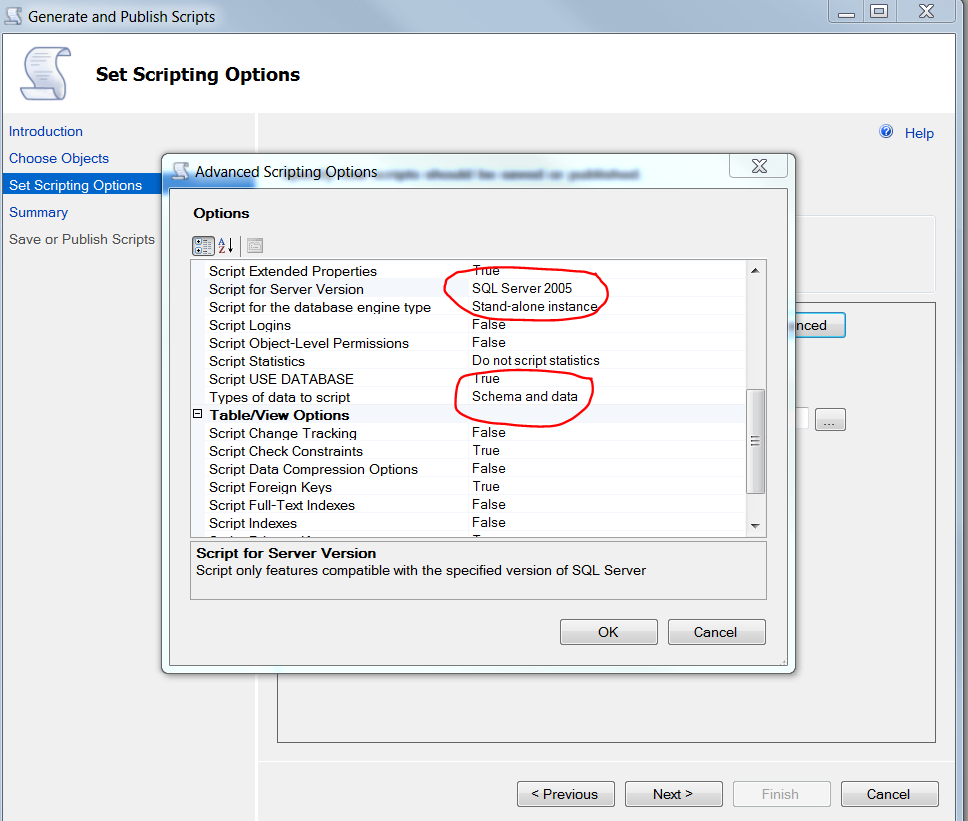
Move SQL Server 2008 R2 back to SQL Server 2005 – Script Schema and Data


Other ways of doing this. See other blog entries
Save version as SQL Server 2005
Type of data to script. Could use Schema and Data


http://www.devx.com/dbzone/Article/40531/0/page/1

Check Constraint for Null and …

ALTER TABLE [Production].[TimeSheet] WITH CHECK ADD CONSTRAINT [CK_TimeSheet_TimeEndLaterThanStart] CHECK (([TimeEnd] IS NULL) OR [TimeEnd]>=[TimeStart])

SSMS stops working while SQL Server still running

Aggh
Laptop Win7 SQL Server 2008 R2 SSMS has worked for a couple of months. Suddenly stopped working. SQL Server was still working becase VS-TFS still present.
Log file lookups on Web search suggested all sorts of possible directions to solve including:
Permissions on Network Service, Reinstall SQL Server performance monitors using unlodctr sqlctr.ini or something
Reinstalling SSMS did not work
Anyway what did work was Restoring back two weeks.

SQL Server Autogrowth settings


Do not use default setttings. See
http://support.microsoft.com/kb/315512

You can view the current settings through the database properties in SQL Enterprise Manager (SEM). Or, you can run the following Transact-SQL command:

sp_helpdb [ [ @dbname= ] 'name' ]

SQL Server Shrink – Maintenance

Does not always work straight off bat:

  1. Need to backup both database and transaction log regularly and possibly before shrink
  2. Try shrinking Database
  3. Try shrinking Database File and Transaction Log File
  4. Repeat above sequences until files shrink

There may be something blocking the shrink. Try the following query. Should return NOTHING in the second column.
If LOG_BACKUP then the space may not be released until a log backup is done.

SELECT name,log_reuse_wait_desc FROM sys.databases ORDER BY name

ASP.Net using network SQL Server instead of SQL Server Express for ASPNETDB.mdf

See

http://www.studiocoast.com.au/knowledgebase/6/aspnet/using-sql-server-instead-of-aspnetdbmdf.aspx

SSIS fails 64-bit dts_e_cannotacquireconnectionfromconnectionmanager acquireconnection method call to the connection manager “sourceconnectionoledb” failed

Occured trying to connect on 64-bit computer to MSAccess
ssis error code dts_e_cannotacquireconnectionfromconnectionmanager.  the acquireconnection method call to the connection manager “sourceconnectionoledb” failed with error code 0xc0209303.  there may be error messages posted before this with more information on why the acquireconnection method call failed.
Answer:
Got to SSIS Project property page > Configuration Properties > Debugging > Run64BitRuntime change from True to False
Superhero answer here:

SQL Server 2008 Management Tools Basic vs Complete Explained…. – CSS SQL Server Engineers – Site H


On SQL Server install there is an option to go for SSMS Basic or Complete. With Basic some features are missing:
You are unable to connect to Server Types other than Database Engine and possibly Compact Database Engine. E.g. Integration Services
Also many menu and toolbar commands are missing.
If you initially install Basic and change your mind and then want Complete then go to install disk and Add Features, picking SSMS complete this time


Visual Studio TFS on Windows 7 – no support for Reporting Features

 
Visual Studio TFS on Windows 7 – no support for Reporting Features
True !!  Even if you try.
 
Later on could try having a virtual server with a Server os on it and then add reporting services
In the meantime I have succeeded in most of my other TFS, specifically will now have ability to use Source Code Control to allow me to work on laptop or XP machine. Also Work Item management !!
 
  • Windows 7 (Windows 7 Home Premium, Windows 7 Professional, Windows 7 Enterprise, Windows 7 Ultimate)

  • Note
    Client operating systems do not support integration with SharePoint Products or the reporting feature. If you want to use either of these features, you must install Team Foundation Server on a server operating system.