Fix Sony Vaio sound – No speaker or headphones are plugged in

Has happened a couple of times on my Sony Vaio

Diagnosis – This post fixes this issue

  1. Red cross against sound volume in notification tray
  2. Also inspect > Windows Key > Sound >
    • Playback > Only one playback device shown – for me that was “Digital Audio (HDMI) High Definition Audio Device – Not plugged in”
    • Recording > “No Audio Device is installed”
  3. Clicking on the sound icon and asking it to detect and resolve problems does not work.

Solution 1 – Try first because it is quicker and less disruptive

Put in headphones and then click on sound icon in notification tray.
Detecting problems may then resolve the matter and put back in the speakers “Default Device”

Solution 2

In MSConfig find the service or startup that is stopping the sound from working
Possible Catalyst Control Center
Possibly Sony Vaio Event Manager or something of that ilke.

Solution 3

Solved by installing driver from here:

http://www.sony.co.uk/support/en/product/VPCEB1C5E/downloads/Preinstalled_Drivers_4943

This got my sound back, but I lost my Aero themes. Got this back after just a little more work. Putting following into a FixAero.reg file and installing may have helped. And a second restart after.

Windows Registry Editor Version 5.00

[HKEY_CURRENT_USER\Software\Microsoft\Windows\DWM]
“UseMachineCheck”=dword:00000000 “Blur”=dword:00000000 “Animations”=dword:00000000

Solution 4

Use msconfig and change to Normal Startup will fix it, but lose the Aero theme.


Note: After my laptop started working again, the Program and Features showed that “Realtex High Definition Audio Driver” was installed in the last days.
 

Windows 7 top tips

Sure there are many web pages discussing this. This is my quick run-down.

  1. Snipping Tool – Press Windows Key and type “snip ” until it is first option – or pin it to the task bar
  2. Drag window away from its full screen lock without using restore first
  3. Drag a window so that the cursor hits the left/right edge of screen at which point the window will snap left/right. Do this with two windows and you can compare two documents.
  4. Press the Windows Key and start typing to find documents, programs, control panel items. E.g. Windows Key > “Program and” and you  will get you “Programs and Features” and press return
  5. Sticky Notes – some people like them I don’t use them
  6. Number of Start Menu options. Right-click on task bar > Properties > Start Menu > Customize
    1. Use Large Icons – generally tick off
    2. Recent Items – generally tick on
    3. Show Video/Printers and many other options on/off
  7. Use Pin to Start Menu / Task Bar
  8. Put Office Programs on the Task Bar and then use Jump Lists by right-clicking them
    1. Pin your most common items to jump lists
    2. Note Jump Lists do very occasionally get forgetful. There is a sophisticated way of backing these up, beyond most normal working
  9. Drag and drop items around the Task Bar


If you find others then please comment and I can add them to the main article here.

Or links to pages that list these out.


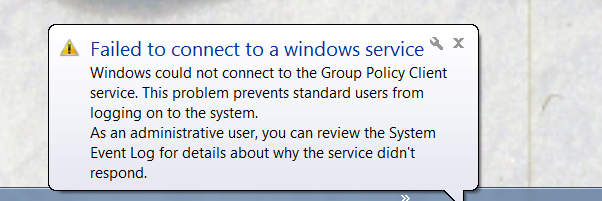
Failed to connect to a windows service – Group Policy Client

Error on start-up of windows:

“Failed to connect to a windows service
Windows could not connect to the Group Policy Client service. This problem prevents standard users from logging on to the system.
As an administrative user, you can review the System Event Log for details about why the service didn’t respond”

Group Policy on login 2013-01-10

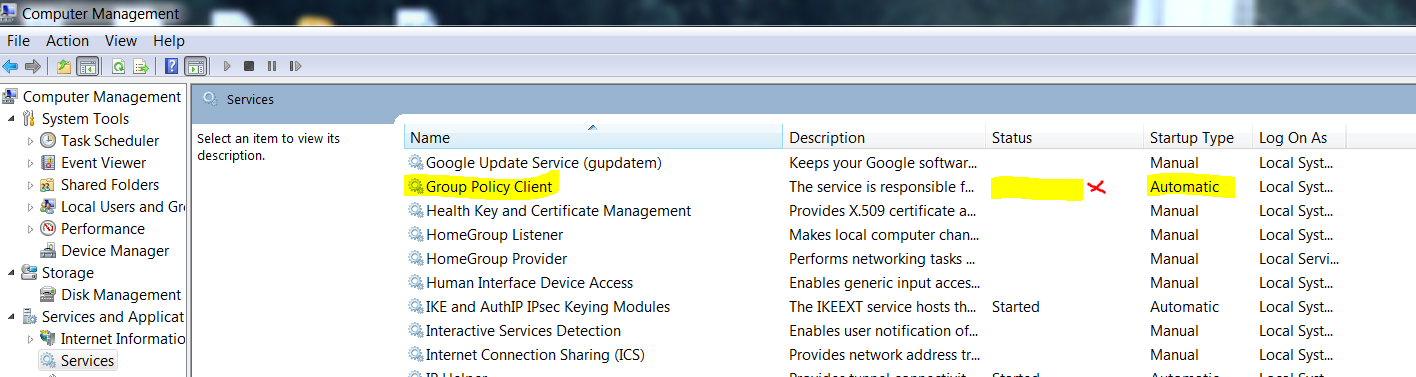
This also does not start a service:

Group Policy Service Not started 2013-06-12


Resolved with thanks to SQL-ER:

http://social.technet.microsoft.com/Forums/en-US/winserverGP/thread/ab15d601-0e38-4f9d-ab7f-5ad5ceda2a43

http://www.youtube.com/watch?v=4m5KEmckWK4&feature=youtu.be


“The crash of your computer during Windows Updates may have caused that !

I had this issue on my laptop since November, and it really bugged me.  I sifted through the event log and found the pattern of events that preceded the issue, and, probably, caused it.
In short, the pattern is as follows: Windows updates run automatically as scheduled, and when reboot is initiated after the updates are finished, the computer crashes (probably during reboot sequence).  When it boots up, it reports that the last shutdown was unexpected, and the issue begins to occur.
I spent 2 days trying to dig out a solution from the Internet, to no avail, until I came across this page.  It doesn’t say anything about this particular problem, but it gives more information about SVCHOST process that starts many services, including Group Policy Client.  It looks like during reboot a vital registry settings were lost during crash and Group Policy Client “don’t know” how to start.  Let me explain:
There are two places to look in the registry:

  1. HKEY_LOCAL_MACHINE\SYSTEM\CurrentControlSet\Services this path should contain gpsvc key (a folder), which is responsible for service parameters and configuration.  I found that the key was intact, so, you do not touch anything here – just check that the key exists.
  2. HKEY_LOCAL_MACHINE\SOFTWARE\Microsoft\Windows NT\CurrentVersion\SVCHOST This is the most important path you should look into, as it must contain the keys and values referred in the key #1.  Below are descriptions what must be present there.
  • There must be Multi-String value called GPSvcGroup. My laptop was missing it.  So, you should create multi-string value named GPSvcGroup and assign it value GPSvc.
  • Next, you must create a key (a folder) and name it GPSvcGroup – this key normally should be there, but, again, it was missin on my laptop.
  • Then open newly-created GPSvcGroup folder and create 2 DWORD values:
  1. First called AuthenticationCapabilities and you must give it a value of 0x00003020 (or 12320 in decimal)
  2. Second is called CoInitializeSecurityParam and it must have value of 1.

Once you complete all steps above, reboot the computer and the problem will be fixed.

Video walkthrough for those who are not very technical is here: http://youtu.be/4m5KEmckWK4

I am so relieved I was able to fix it, and hope this will help others with the similar issue.”


Display Picture in a Crystal Report from a FileName in a database table

http://www.c-sharpcorner.com/forums/thread/116813/how-to-display-images-using-crystal-reports-with-file-names.aspx

http://visualbasic.ittoolbox.com/groups/technical-functional/visualbasic-l/how-to-display-jpg-file-in-crystal-report-using-file-path-from-sql-table-1640366

1)Save a default “Not Available” image in your images folder (you
can download one from google small images).
2)open crystal reports
3)Go to the Insert menu.
4)Click on Picture. – Also works if you use an OLE Object
5)A window will open for you to choose a picture, choose the
default one from step 1.
6)click ok and place it on the report.
7)Right click the image & click Format Graphic.
8)In the form that will open, click on the “Picture” tab.
9)Click on the formula button next to “Graphic Location”.
10)In the formula editor that will open, just select the path
field from your table and save the formula.

Add external access for Lync

When trying to make a Lync IM

http://office.microsoft.com/en-gb/office365-suite-help/let-lync-online-users-communicate-outside-your-organization-HA102837606.aspx

When contacting your support team, reference error ID 1002 (source ID 243). Troubleshooting information is available online, including best practices for using Lync.

In Office 365 Plan E3

  1. Lync Admin Center
  2. Organisation
  3. External communications must turn this on

The other organisation must also have this setting on:

This message wasn’t sent because <recipient>doesn’t have permissions on your organization’s network, or because the address is incorrect. Please contact your support team.

Cannot use adobe reader to view pdf in your browser. Reader will now exit. Please exit your browser and try again.

PROBLEM:

  • Windows 7 64-bit
  • Internet Explorer 9
  • Adobe Reader 8.3.1

When opening a pdf in i.e

“Cannot use adobe reader to view pdf in your browser. Reader will now exit. Please exit your browser and try again.”

With reference to:

http://forums.adobe.com/thread/511010

Uninstall version 8.3.1 and install latest. For me this was 11.x.x

Crystal Reports Error: The request could not be submitted for background processing

If there is a database picture this may need to be re-imported

Outlook Expand Group fails. Cannot perform the requested operation.

Problem

Outlook Expand Group fails. Cannot perform the requested operation. The command selected is not valid for this recipient. The Operation failed.

Solution

Outlook > Contacts > Open Group > Update Now

One or more members of this contact group cannot be found…


Crystal Reports – Invalid Argument provided. Failed to open a rowset. Error in File Invalid argument for database

At first thought it ran OK in Crystal not when called from program.

Then checked that it ran from the program on the Crystal developer machine OK.

So runs OK on developer’s machine not on particular user’s machines.

Hence error with ODBC. Changed developer machine ODBC to use from SQLNCLI to SQL Server Native Client 10.0 i.e. SQLNCLI10 and then went to report and “Set Location” for the newest table, the report then worked on all machines

[Microsoft][ODBC Driver Manger] Data source name not found and no default driver specified

ERROR

Have an old Excel file that connects to a database list using Microsoft Query. An existing user was moved to a new Windows 7 machine and then got this error.

[Microsoft][ODBC Driver Manger] Data source name not found and no default driver specified

SOLUTION

Tried various things. In the end.

In Administrative Tools > ODBC > Drivers on his machine SQLNCLI was missing.
I did not want to install this old version, so initially changed the connection string to “SQL Server Native Client 10.0” but “SQLNCLI10” may work