How do I backup SQL Azure to a Blob Storage Account using bacpac
27-Jun-1212 Leave a comment
http://msdn.microsoft.com/en-us/library/windowsazure/hh335292
IT and business subjects
27-Jun-1212 1 Comment
–Start logged into Azure and with master as current database
–Does work 27/06/2012
DROP DATABASE _20120627
CREATE DATABASE _20120627 AS COPY OF
–Must wait for state to be changed from Copying to ?Ready?
SELECT * FROM sys.dm_database_copies
SELECT * FROM sys.databases
SELECT name, state, state_desc from sys.databases where name = ‘_20120627’
–Test that data is there
SELECT * FROM .
27-Jun-1212 Leave a comment
A storage account needs a container before it can be used.
The container may be made in Visual Studio using a new Project > Cloud > Windows Azure Cloud Service
When this project is created with any Web Roles you create the relevant projects will also be created and linked.
When this is created make this Cloud Service Project the start-up project and run-it in Visual Studio as an administrator you may then get further, it will not start the cloud service project but the web project. This will then give relevant keys.
I found this not to run in local. Needed to publish it first.
Then in Azure Management > Hosted Services > Locate > Run from DNS
To test the application in the staging environment
After the application is working correctly in the staging environment, you are ready to promote it to the production environment.
To promote the application to production
Azure Export of SQL database to blob
The format of the file should be
http:// teststorage01.blob. core.windows.net/dbbackup/ebcgroup1.bacpac
I had following error:
“azure blob is not writeable … the specified container does not exist”
To create the container make sure the above has been published to Azure and run from there.
21-Jun-1212 Leave a comment
See code below
Public Class RuntimeConnection

Const ConStringSettingsName = "MyEntitiesName"

Sub SetRuntimeConnection(UserNameValue As String, PasswordValue As String)
Dim currentConString = ConfigurationManager.ConnectionStrings(ConStringSettingsName).ConnectionString
Dim myWebConfig = System.Web.Configuration.WebConfigurationManager.OpenWebConfiguration("~")
Dim builder As New EntityClient.EntityConnectionStringBuilder(currentConString)
Dim sqlConStrManager As New SqlClient.SqlConnectionStringBuilder(builder.ProviderConnectionString)
sqlConStrManager.UserID = UserNameValue
sqlConStrManager.Password = PasswordValue
builder.ProviderConnectionString = sqlConStrManager.ConnectionString
myWebConfig.ConnectionStrings.ConnectionStrings(ConStringSettingsName).ConnectionString = builder.ConnectionString
myWebConfig.Save()
ConfigurationManager.RefreshSection("connectionStrings")
'Dim msg = String.Concat(sqlConStrManager.ConnectionString, vbCrLf, vbCrLf, builder.ConnectionString, vbCrLf, vbCrLf, _
' myWebConfig.ConnectionStrings.ConnectionStrings(ConStringSettingsName).ConnectionString)
'MsgBox(msg)
End Sub

End Class
Also see below
Imports System.Configuration

...

Dim config As Configuration = ConfigurationManager.OpenExeConfiguration(ConfigurationUserLevel.None)
config.ConnectionStrings.ConnectionStrings("myEntities").ConnectionString = value
config.Save()
ConfigurationManager.RefreshSection("connectionStrings")
'MsgBox(config.ConnectionStrings.ConnectionStrings("myEntities").ConnectionString)

.
End.
19-Jun-1212 Leave a comment
Followed
https://www.windowsazure.com/en-us/develop/net/tutorials/web-site-with-sql-database/
There was a warning on publish page 3, which mentioned code-first migrations must be enabled. After web-search I realised I needed to upgrade to a higher version of EntityFramework which has System.Data.Entity.Migrations
Used Visual Studio > Tools > Library Package Manager > Package Manager Console
PM> install-package EntityFramework -Pre
PM> enable-migrations
will then publish. Although now up, the sites page is “This web site has been successfully created. There’s nothing here yet, but Windows Azure makes it simple to publish content with GIT, TFS, FTS or your favorite development tool”
If go directly to a page I know exists it does take me there, (or in my case redirects to login)
http://xamlgeek.net/2010/11/19/start-page-in-azure/
During development this of course wasn’t an issue – I just right clicked the page I wanted as startpage as selected “Set as Start Page”.
When I deployed to Azure the start page wasn’t recognized. To set the start page in Azure it is necessary to do one of two things: 1) Implement a start page called “Default.aspx” or 2) specify the start page in the web.config file:

Setting the defaultDocument value in the web.config fixed my issue.
19-Jun-1212 Leave a comment
Use
C:\%windir%\Microsoft.NET\Framework\<versionNumber>\aspnet_regsql.exe
to add authorisation schema to an existing database
This will not work with SQL Azure. See
http://support.microsoft.com/kb/2006191
which links to
19-Jun-1212 Leave a comment
The connection name ‘ApplicationServices’ was not found in the applications configuration or the connection string is empty
Go to Project level web.config. Find <membership> change connectionStringName=”ApplicationServices” to “LocalSqlServer”
18-Jun-1212 Leave a comment
    <form action="" method="post">
   Code starts with: <input type="text" name="MinCode" id="CodeInput" />
    <input type="submit" value="Click Me" />
    </form>
and
    <form id="search" action="http://www.google.co.uk/search" method="GET">
    <input type="text" name="q" />
    <input type="submit" value="Submit" />
    </form>
 routes.MapRoute("Products", "Products/{myCode}", _
              New With {.controller = "Products", .action = "Search"})
        Function Search(name As String) As ActionResult

            Dim myName = RouteData.Values("name")
            Dim myNameFromSignature = name
            Dim result = String.Concat(myName, vbCrLf, name)
            'Return RedirectToAction("Index")
            Dim model As New List(Of ProductsModel)
            InitialiseProductList(model)
            model = model.Where(Function(f) f.Code.ToLower.StartsWith(name)).ToList
            If model.Count = 0 Then
                Return Content(Server.HtmlEncode("No results"))
            End If

            'ViewBag.Name = name
            Return View(model)

        End Function
<% Html.BeginForm("Search", "Products")%>
   <input type="text" name="myCode" />
   <input type="submit" name="Submit" />
<% Html.EndForm() %>
Confirmed that this works. SRS 18/06/2012. Then did not work 19/06/2012. However following did work.
this example also includes “How do I use @ in ASP.Net MVC including Using.
@Using (Html.BeginForm(“Search”, “Reg90″, FormMethod.Post))
@:<input type=”text” name=”myCode” />
@:<input type=”submit” value=”Click Me 2″ />
End Using
08-Jun-1212 Leave a comment
User Standards for Documents
The originator of a document would ideally bring documents up to a certain standard before distribution. If this is not done then each recipient may need to bring the document up to standard themselves.
It is also good courtesy to send people well-structured documents.
Ideally data is stored once. Distributing a file, especially by email, has the effect of creating multiple copies of the same data in different places, each of which may then be altered independently.
It is good to be aware of possible discrepancies between copies.
One solution is to have a central location for files.
A better solution is to use a central database
Data that may need to be Sorted, Filtered, Imported or require Sums or Pivots


This is an acceptable level for most users.
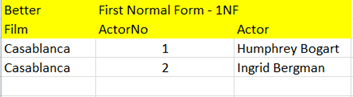
This uses multiple tables to remove data duplication. In the example above the film title “Casablanca” appears more than once. If more films were added the actor names would also appear more than once. In the example below the title and actors appear only once and are subsequently referred to by their IDs, in this case in the FilmActor table.

18-Apr-1212 Leave a comment
WPF freezes when dragging data source onto a Page or Window
Inspect datasource and see if it has a child table underneath it. Does this child expand to show the parent table again. If so then you may be creating an infinite loop when dragging the datasource onto the Page or Window
 Stephen Shakespeare